

 Our mission is to lead innovation by providing the most advanced solutions in reliability and sustainability to empower…
 REC is looking to the future by aligning business goals with Saudi Arabia’s 2030 Vision. Part of this is investing in our young people and their future.
 Reliability Expert Center was established with the strategic vision of spreading a reliability and sustainability culture across Saudi Arabia.




With integration into the Synthesis Platform, many of ReliaSoft’s software tools have transitioned from a standalone document format (which required you to save changes before closing the file), to a multi-user, database-driven approach (which automatically saves changes as they are made).
The relational database implementation provides tremendous benefits, and is an integral part of the Synthesis Platform architecture and guiding philosophy of a continuous process driven by shared data and analyses across different activities and users. For standard and enterprise repositories, analyses and data are saved automatically as you work in order to make the most up-to-date information available to all other applications, activities and users. However, now in Version 10, if you are working alone in a single Synthesis desktop application, you can opt to use the new Synthesis file format instead. This type of database is similar to standard Synthesis repositories except that it can only be used by one person at a time, and changes are not saved until you choose to save the file.
For any type of repository, you can also use the Restore Points feature to roll back (or undo) changes when needed.
Within the context of Synthesis, the phrase “restore point” refers to an exact replica of a project at a particular point in time (i.e., a backup) that can be restored when and if it is needed. If you create a restore point before you start working on changes that you may wish to discard, this is functionally equivalent to having the option to close a project without saving it.

You will be prompted to enter any notes that will later help you identify this stage in the analysis.
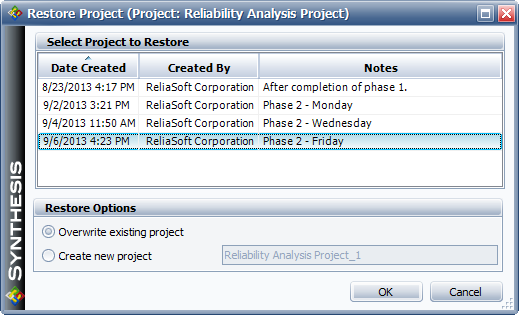
If you select the last restore point and choose Overwrite existing project, the software will automatically take the current project back to its prior state — just like closing a standalone file without saving it.
But this feature provides even more flexibility than the old standalone files because you can now choose to roll back to any saved restore point, and you also have the option to leave the current project unchanged while creating a new project that restores the selected backup.
To learn more, open any of the Synthesis application help files and navigate to Working in Synthesis > Managing and Restoring Data > Restore Points. (Or click here to see the topic in the Weibull++/ALTA help file…)